

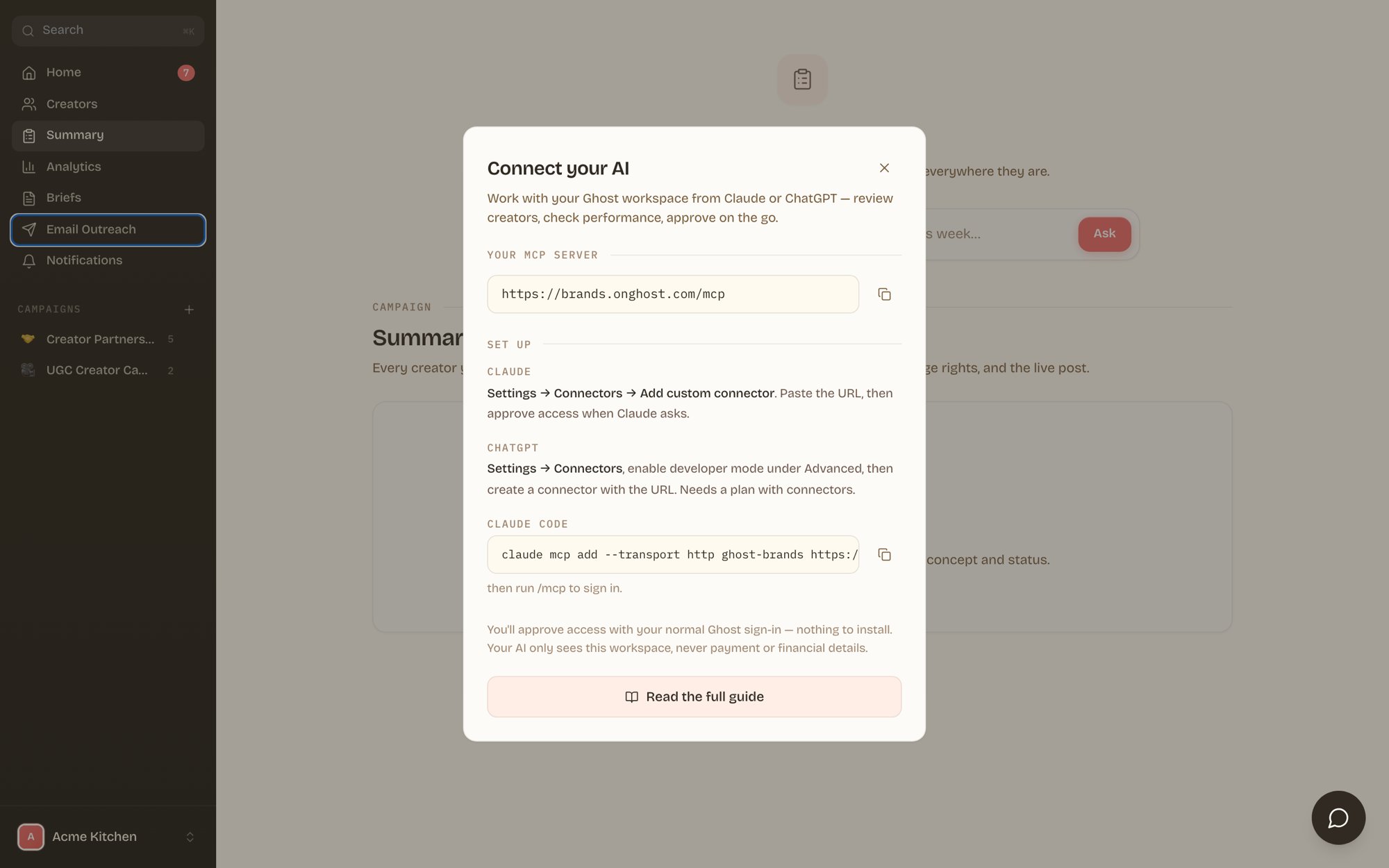
The Connect your AI dialog in the portal has your URL and setup steps, ready to copy.
Connect from Claude
1
Add a custom connector
In Claude, go to Settings → Connectors → Add custom connector. Name it “Ghost Brands” and paste the URL above.
2
Sign in and approve
Click Connect, sign in with your Ghost magic link, and press Approve on the consent screen.
Custom connectors are available on claude.ai and the Claude desktop and mobile apps.
Connect from ChatGPT
1
Turn on developer mode
In ChatGPT, go to Settings → Connectors → Advanced and enable Developer mode.
2
Create the connector
Choose Create, paste the URL above, and authorize with your Ghost sign-in.
Connectors require a ChatGPT plan that supports them (Plus, Pro, or Business).
Connect from Claude Code
Run one command, then sign in:/mcp in Claude Code and follow the sign-in prompt.
What your AI can do
Once connected, you can ask things like:- See your campaigns and the creators waiting on your approval
- Approve, deny, or comment on creators
- Review submitted video drafts and send feedback to the Ghost team
- Read campaign performance (views, likes, comments)
- Write and edit campaign briefs, and tag them to campaigns
- Create new campaigns
- Message your Ghost team
Security
- Your workspace only. A connection is scoped to your brand and nothing else.
- You approve it. Access is granted with your own Ghost sign-in, the same magic link you already use.
- No financial data. Rates, costs, and invoices are never exposed to your AI. For anything billing-related, your AI passes a message to the Ghost team.
- Revoke anytime. Ask your Ghost team to turn off access, and any connected AI loses it right away.
Troubleshooting
The connector won’t authorize. Open the magic-link email on the same device and browser where you started the connection. “Email not recognized.” Access is invite-based. Ask your Ghost contact or a teammate to invite you from Workspace settings. Your AI says it can’t reach the server. Re-add the connector and check the URL is exactlyhttps://brands.onghost.com/mcp, with no trailing slash.
The data looks stale. Ask your AI to re-fetch, for example “check again for new creators.”