
Documentation Index
Fetch the complete documentation index at: https://docs.onghost.com/llms.txt
Use this file to discover all available pages before exploring further.
Customize Ghost & access your settings
To access the settings on the account click the dropdown in the top left of the app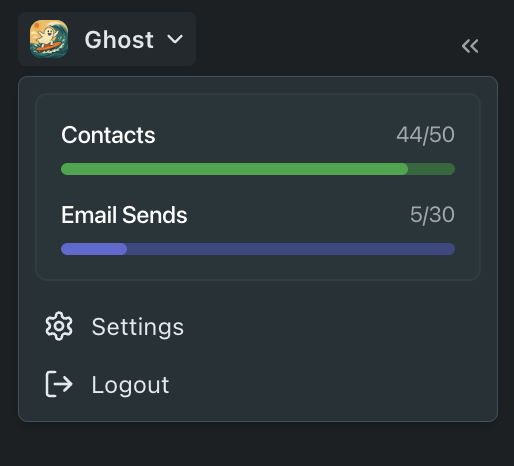
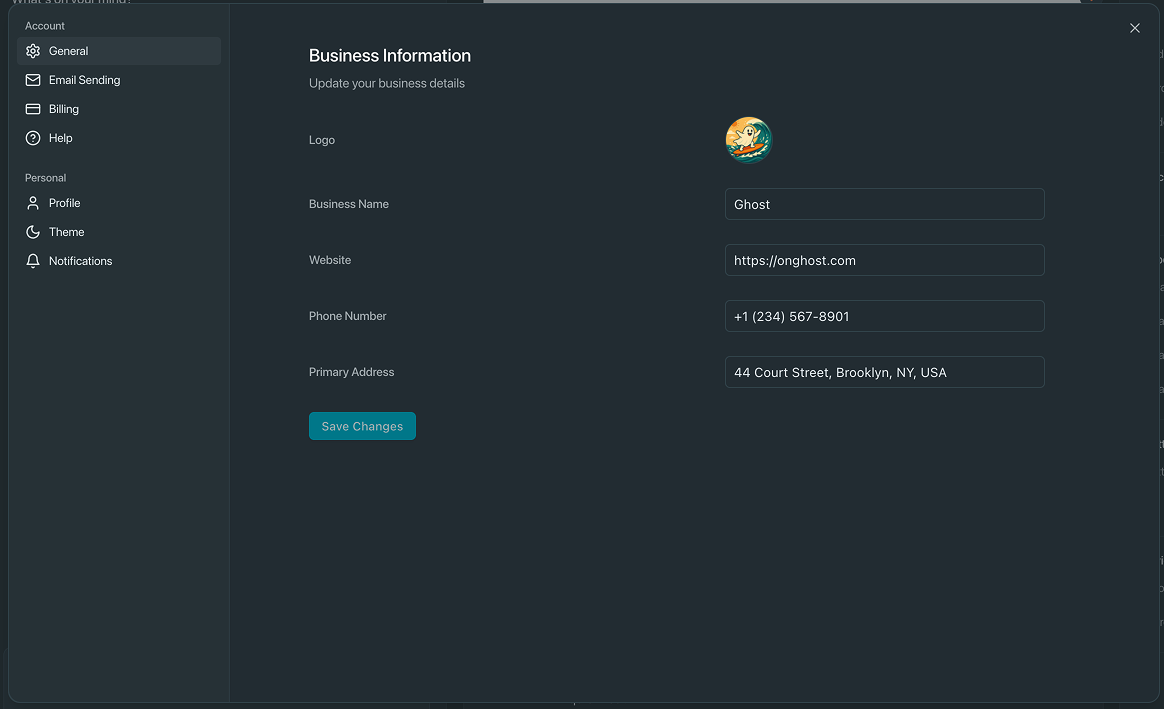
General Tab
This is where you set the core details for your business. You can update:- Logo – Upload your brand’s logo to appear in your app.
- Business Name – Set the name that represents your brand or company.
- Website – Add your main site or landing page URL.
- Phone Number – optional, but uyou can add here if you’d like.
- Primary Address – Required for email compliance (CAN-SPAM law). This appears in the footer of your marketing emails.
Email Sending
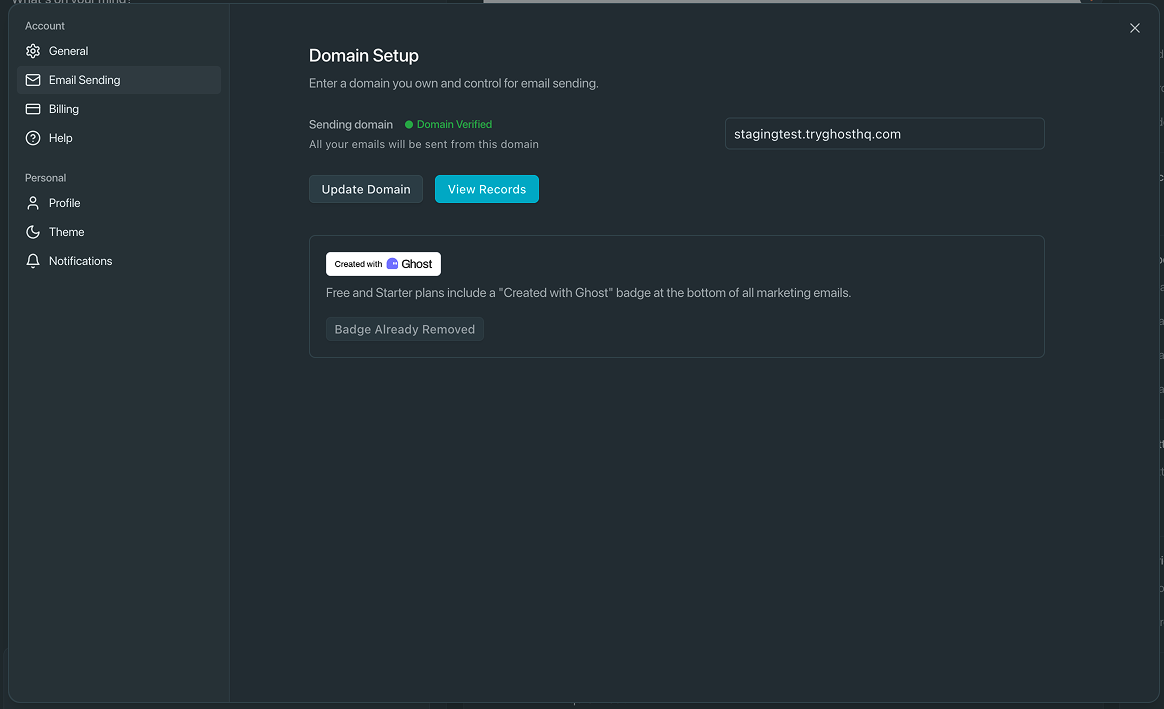
Here you can connect your domain to Ghost so emails come from your brand (not a generic address). This improves deliverability and trust from your recipients.- Connect and verify your sending domain.
- Update domain records and manage email sender identity.
- See if the “Created with Ghost” badge is applied or removed.
Billing
View your current plan, contact and send limits, update payment details, and download invoices - all in one place.- View and manage your current plan (e.g. Pro, Business, Enterprise).
- See your contact and send limits based on your plan.
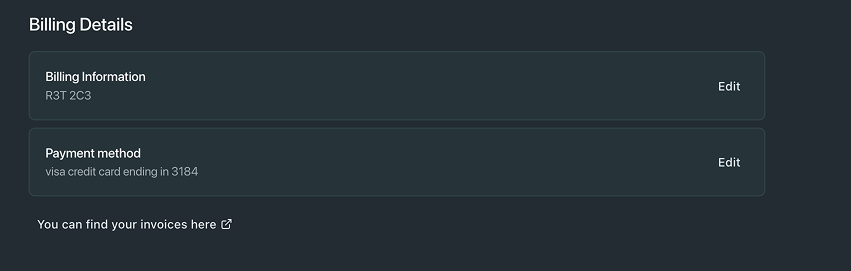
- Change or update your billing info and payment method.
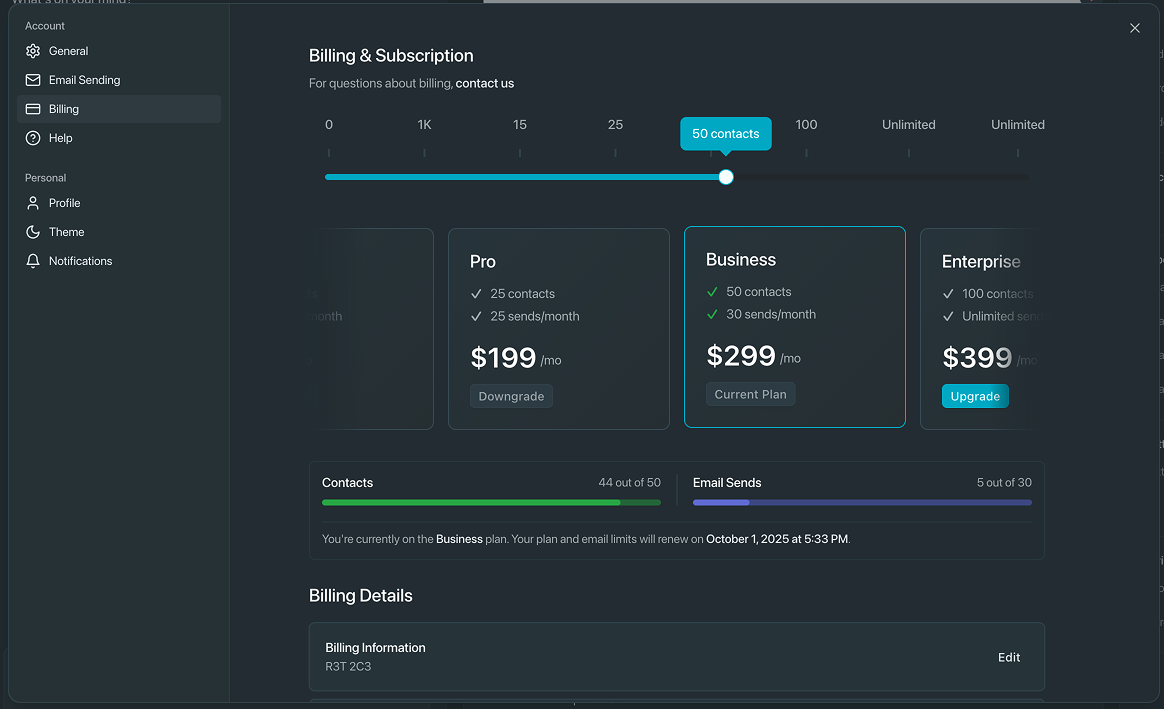
- See & download past invoices - at the bottom of the page
Help
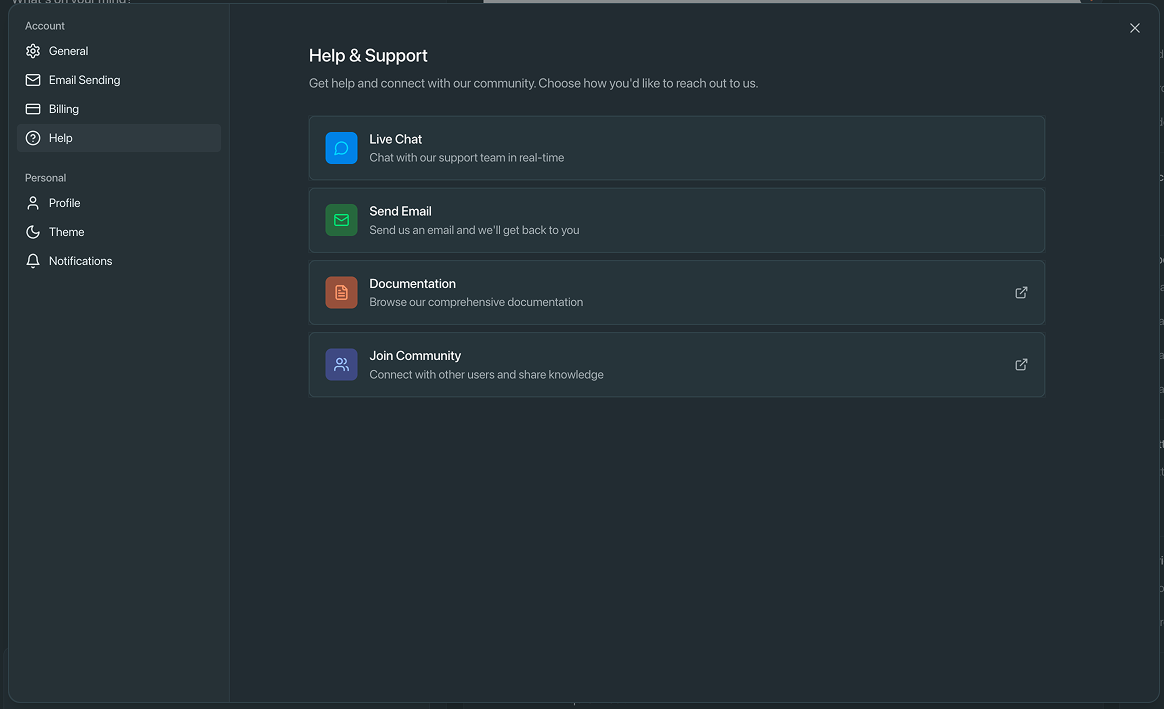
Need support? Chat with us, send an email, browse docs, or join the Ghost Discord community.- Get support via live chat or email.
- Access Ghost’s documentation.
- Join the user community on Discord.
Profile
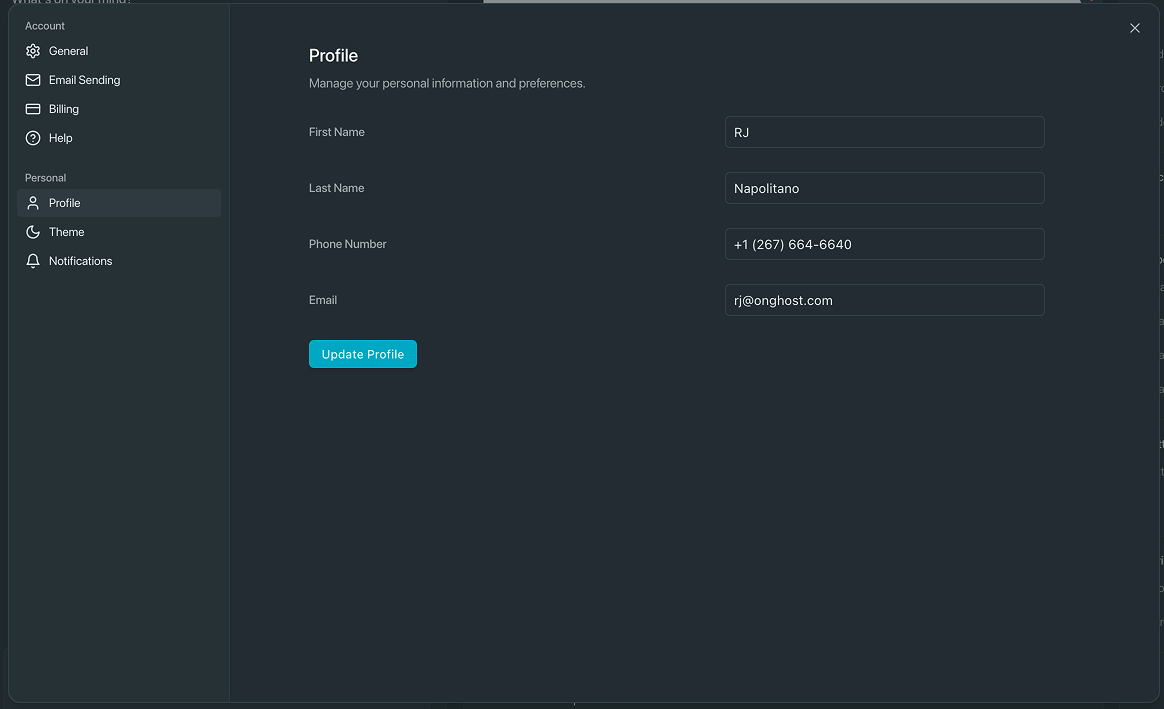
- Update your personal info: name, email, and phone number tied to your account.
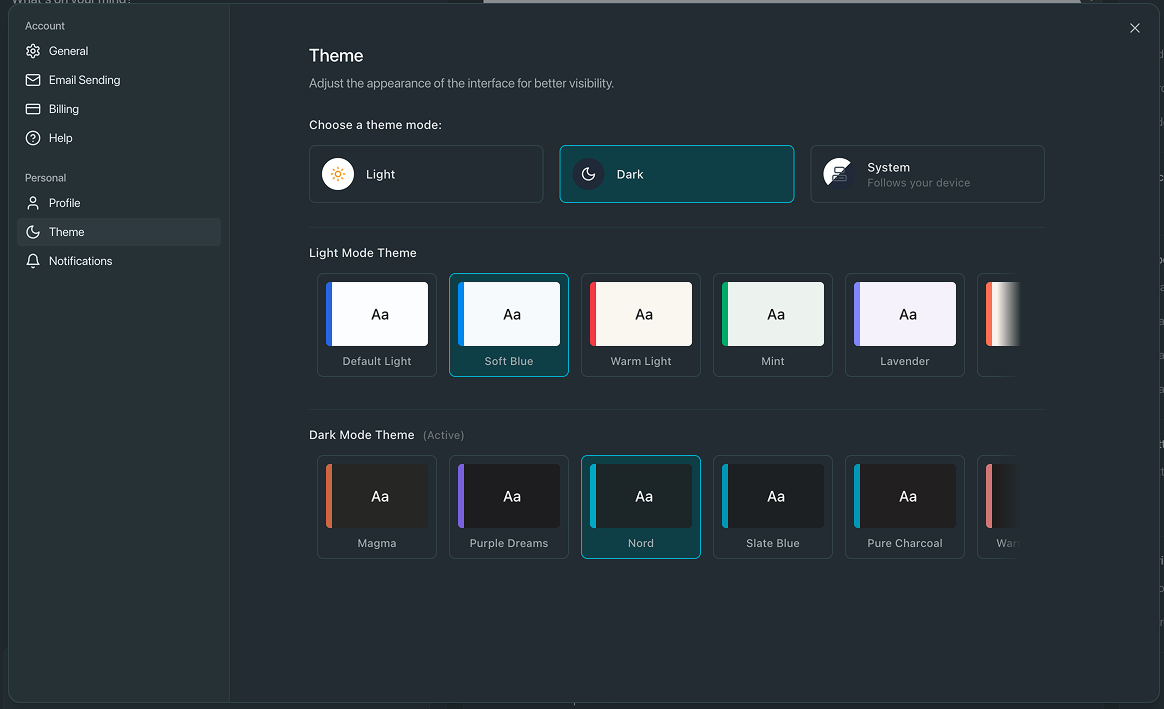
Theme
- Choose between light mode, dark mode, or system preference.
- Select from multiple color themes for both light and dark interfaces.
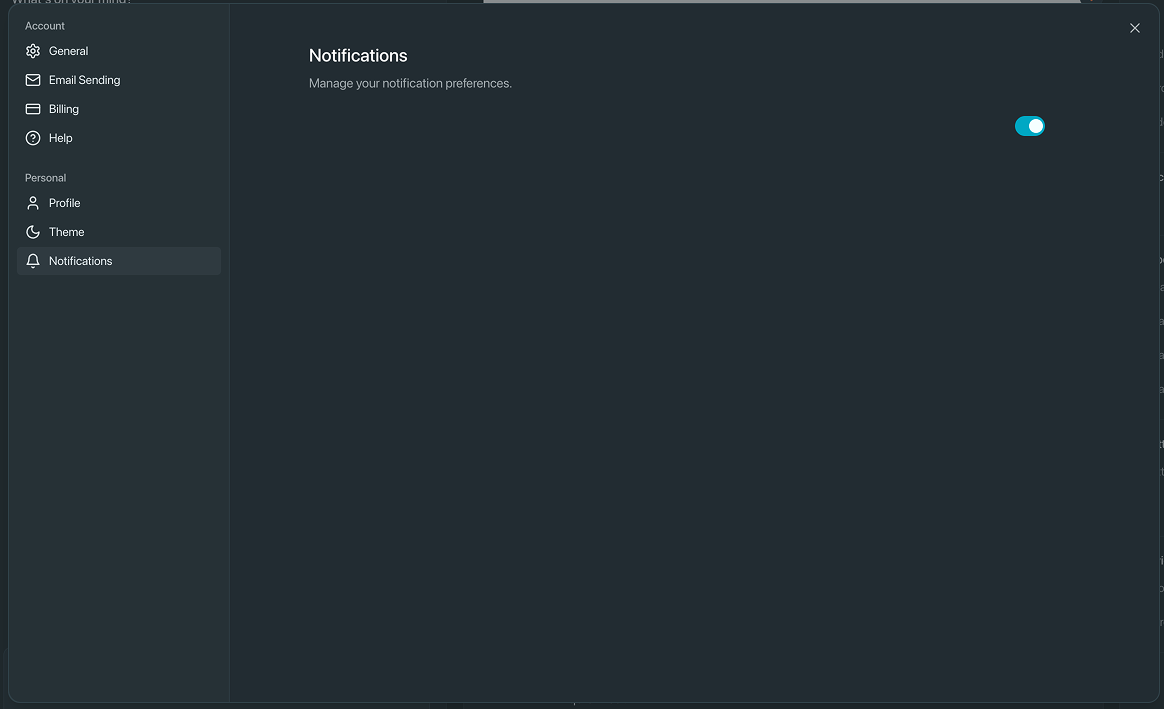
Notifications
- Toggle notifications on or off for account-related alerts and updates.